Outlook Notifications
Alert Notification Settings
tip
If you would like to keep a desktop alert visible so that you can take more time to read it, rest the pointer over the alert before it fades from view.
-
Open Classic Outlook
-
Select File.
-
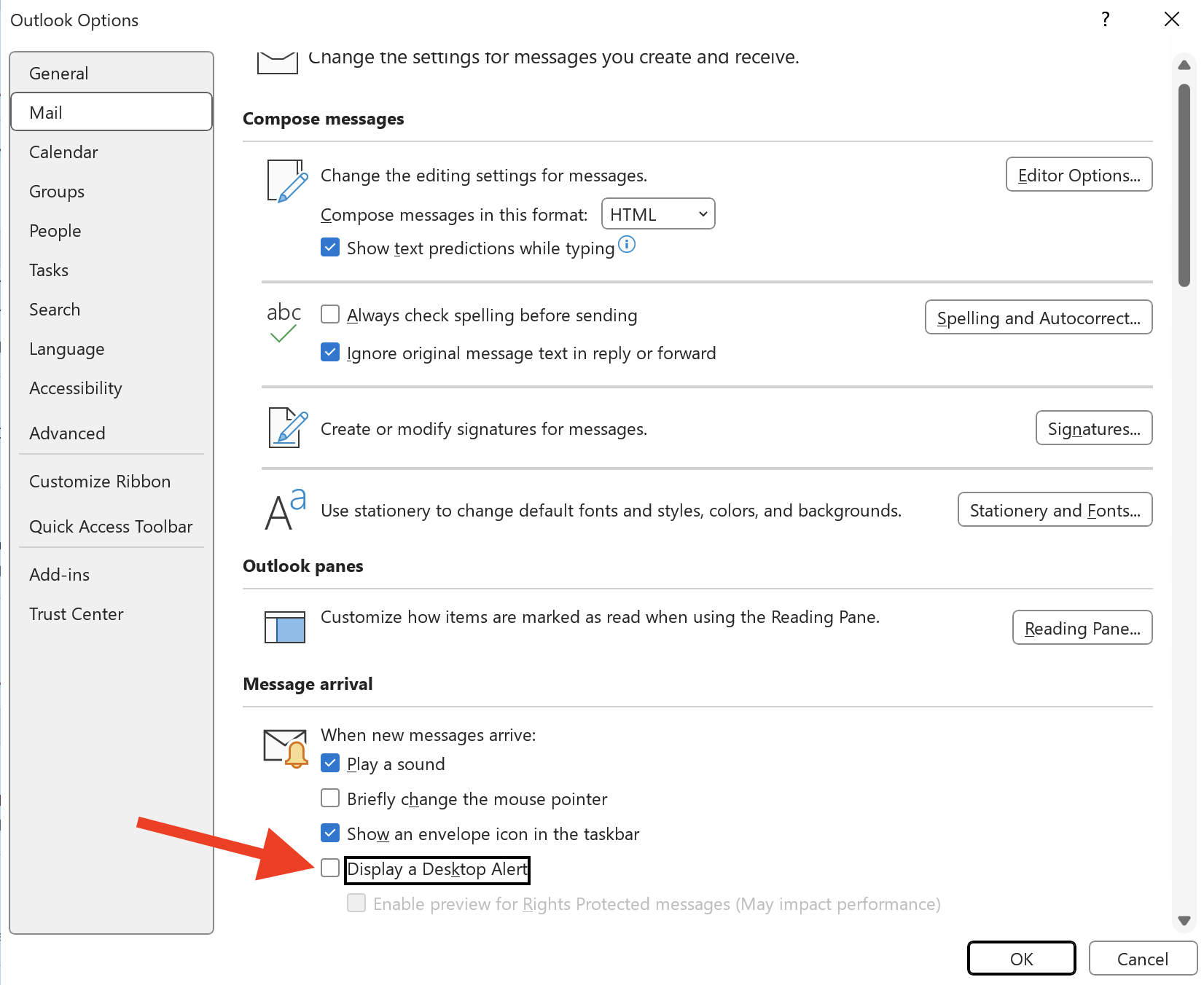
Select Options, then Mail.
-
Under Message arrival, ☑️ "Display a Desktop Alert" check box to enable notifications, and then select OK.
 note
noteTo suppress or enable other notifications such as sounds, mouse pointer changes, or displaying an envelope icon in the taskbar, check or clear the respective check boxes for those functions.