Adding a shared folder or mailbox (Outlook on the web)
Use these steps in Outlook on the web to add a shared folder or mailbox to your folder list. After you finish, the shared mailbox and its folders will appear in the left navigation pane each time you open Outlook on the web.
Before you start: Your Microsoft 365 admin must add you as a member of the shared mailbox. If you don’t have access, contact IT support.
Full guide: Open and use a shared mailbox in Outlook (Outlook on the web)
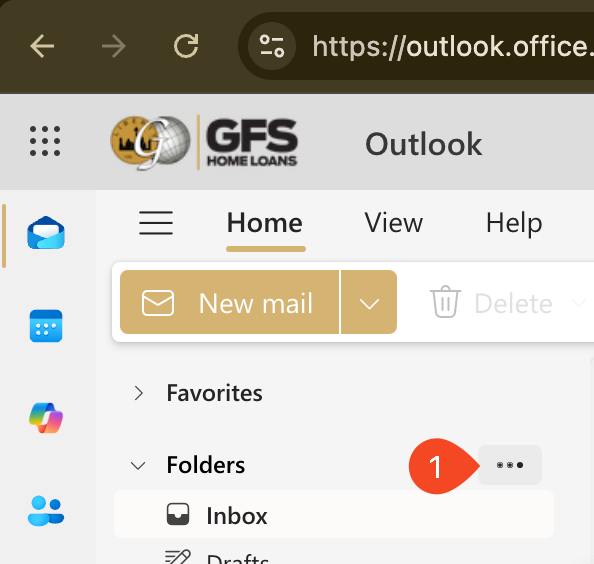
1. Select the … button next to Folders
Sign in to your account in Outlook on the web. In the left navigation pane, select the … (more options) button next to Folders.
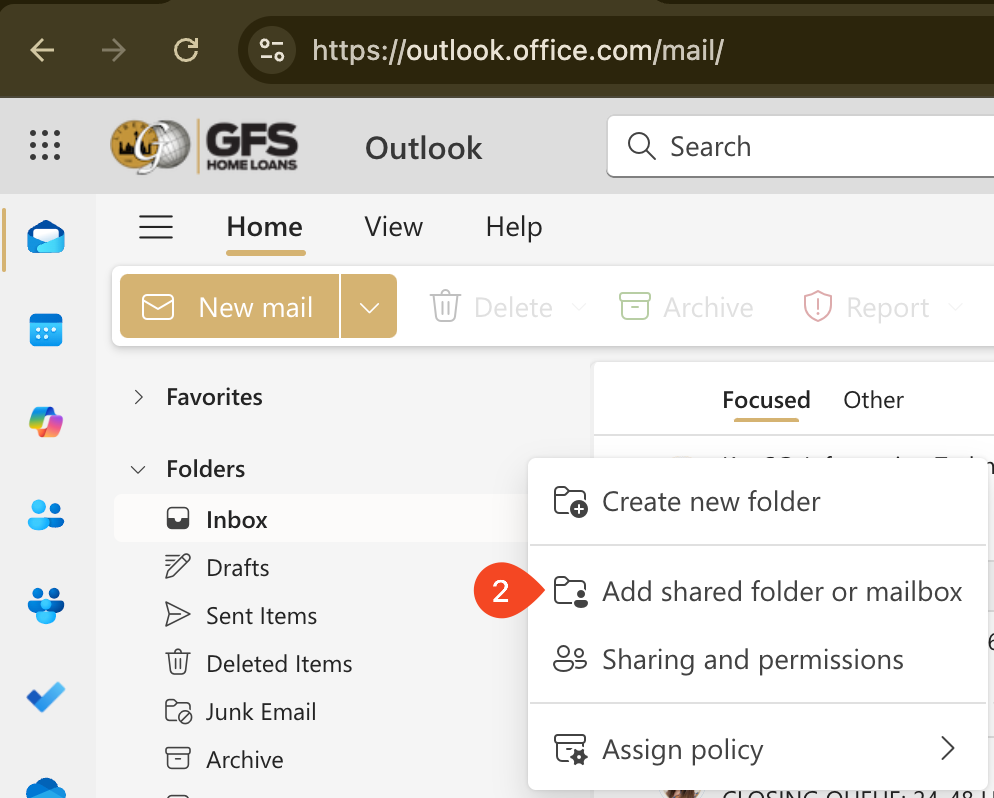
2. Select Add shared folder or mailbox
From the menu, choose Add shared folder or mailbox.
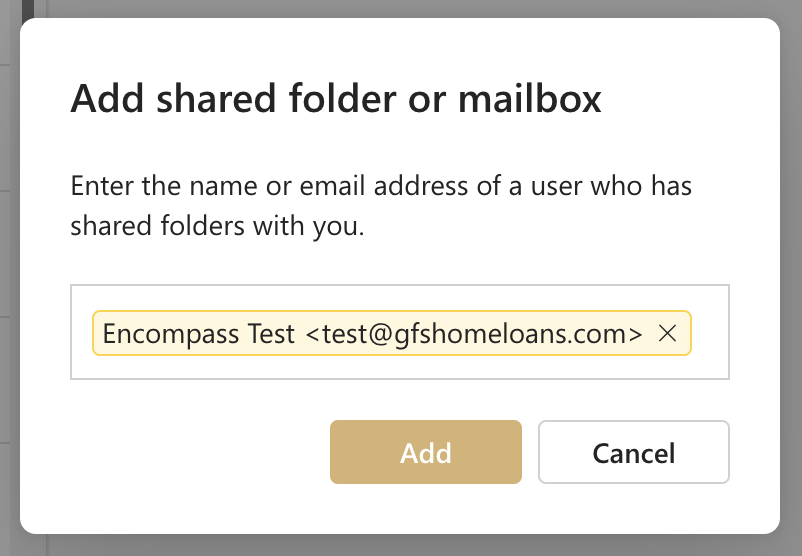
3. Enter email address of inbox you wish to add
In the Add shared folder dialog box, type the name or email address of the shared mailbox you are a member of (for example, info@gfshomeloans.com), then confirm.
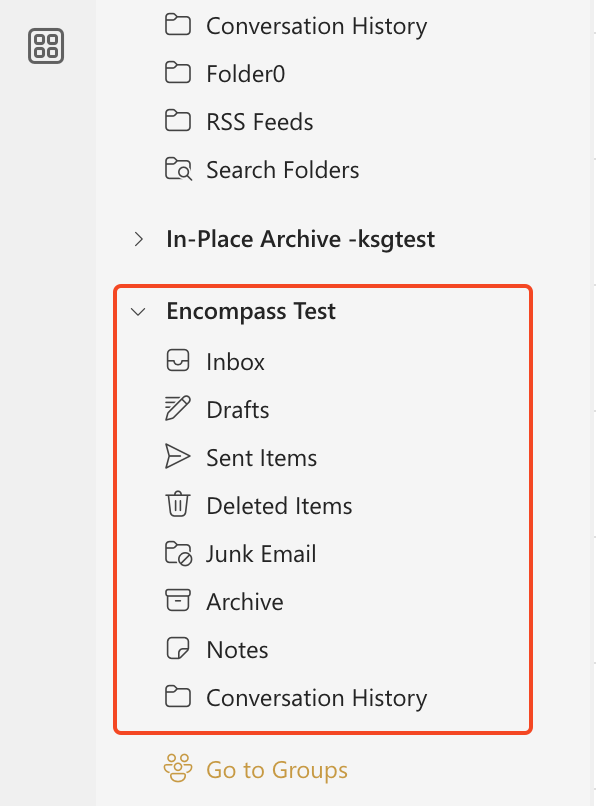
4. Newly added Inbox will appear at the bottom of your list
The shared mailbox will appear in your Folder list. You can expand or collapse its folders (Inbox, Sent, etc.) just like your primary mailbox. The newly added mailbox typically appears at the bottom of the list.
Remove the shared mailbox from your folder list
To remove it later: right-click the shared mailbox in the folder list, then select Remove shared folder.
Sending email from the shared mailbox
- Select New mail above the folder list.
- At the top of the message, choose More actions (…) → Show From.
- In the From field, choose or type the shared mailbox address. The first time, you may need to remove the default address and type the shared address; after that it will appear in the From dropdown.
- Add recipients, subject, and message, then select Send.
Recipients will see the message as coming from the shared mailbox, not from your personal address.
Replying from the shared mailbox
- Open a message that was sent to the shared mailbox.
- Select Reply.
- Choose More actions → Show From, then set From to the shared mailbox address (add it as above if needed).
- Send the reply.
For more details, including opening the shared mailbox in a separate browser window and using the shared calendar, see the full Microsoft guide.