Classic Outlook Settings
Change the default font, color, style, and size for messages in classic Outlook
In classic Outlook, the default font is Calibri in black. You can change the default font and its color, size, and style for new messages and for replies and forwards.
Steps:
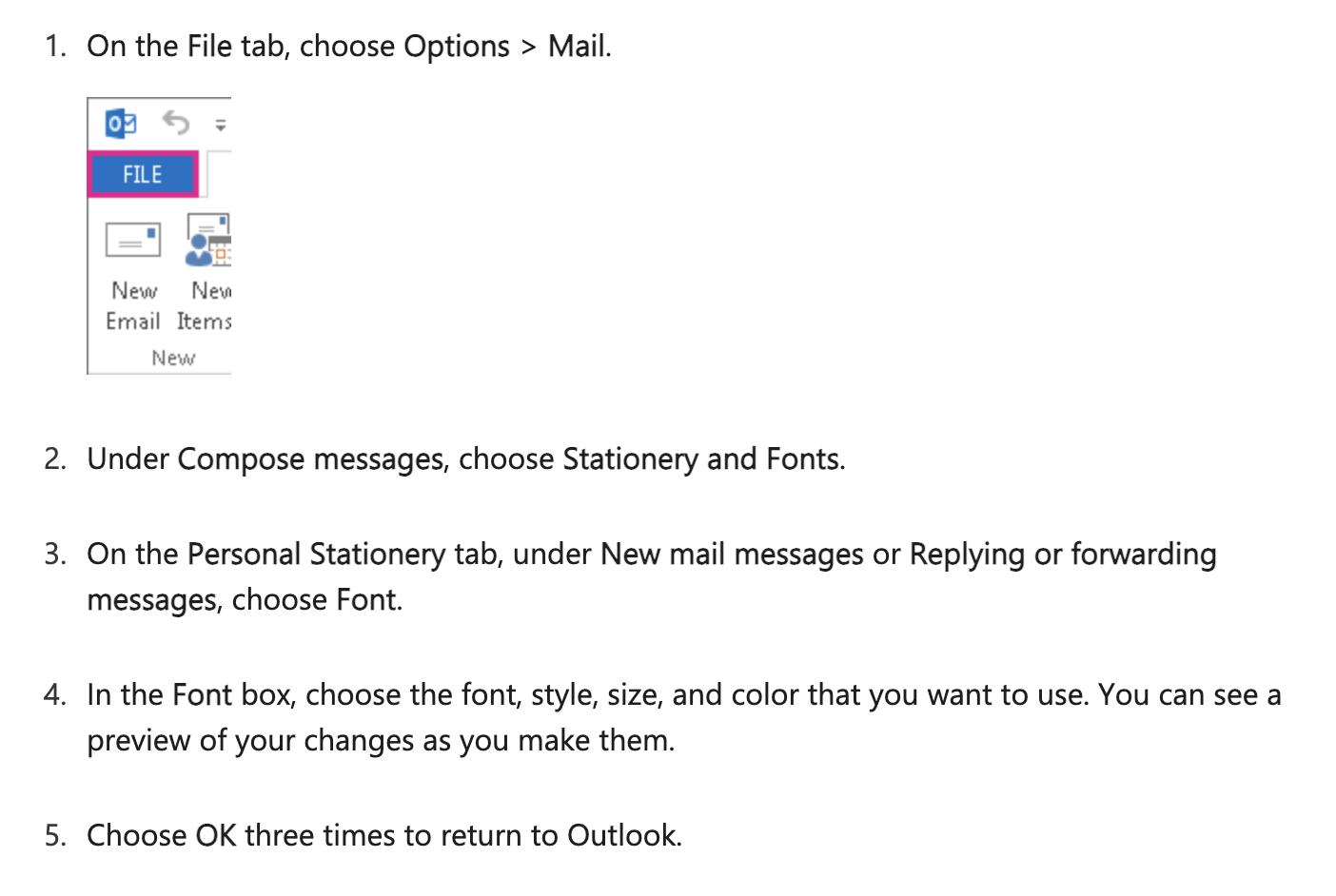
- On the File tab, choose Options → Mail.
- Under Compose messages, choose Stationery and Fonts.
- On the Personal Stationery tab, under New mail messages or Replying or forwarding messages, choose Font.
- In the Font box, choose the font, style, size, and color you want. You can see a preview as you make changes.
- Choose OK three times to return to Outlook.
Your new settings take effect immediately.
info
Set font preferences separately for new messages and for replies and forwards. If a font you choose isn’t installed on the recipient’s computer, their mail program will substitute an available font.
Full guide: Change the default font or text color for email messages in Outlook (Classic Outlook)