Adobe Acrobat
Adobe Acrobat is a professional PDF editing and management tool available for your use. This guide will help you log into Adobe Acrobat using your Microsoft account credentials.
Table of Contents
Logging into Adobe Acrobat
Follow these steps to sign in to Adobe Acrobat using Single Sign-On (SSO) with your Microsoft account.
Step 1: Search for Acrobat
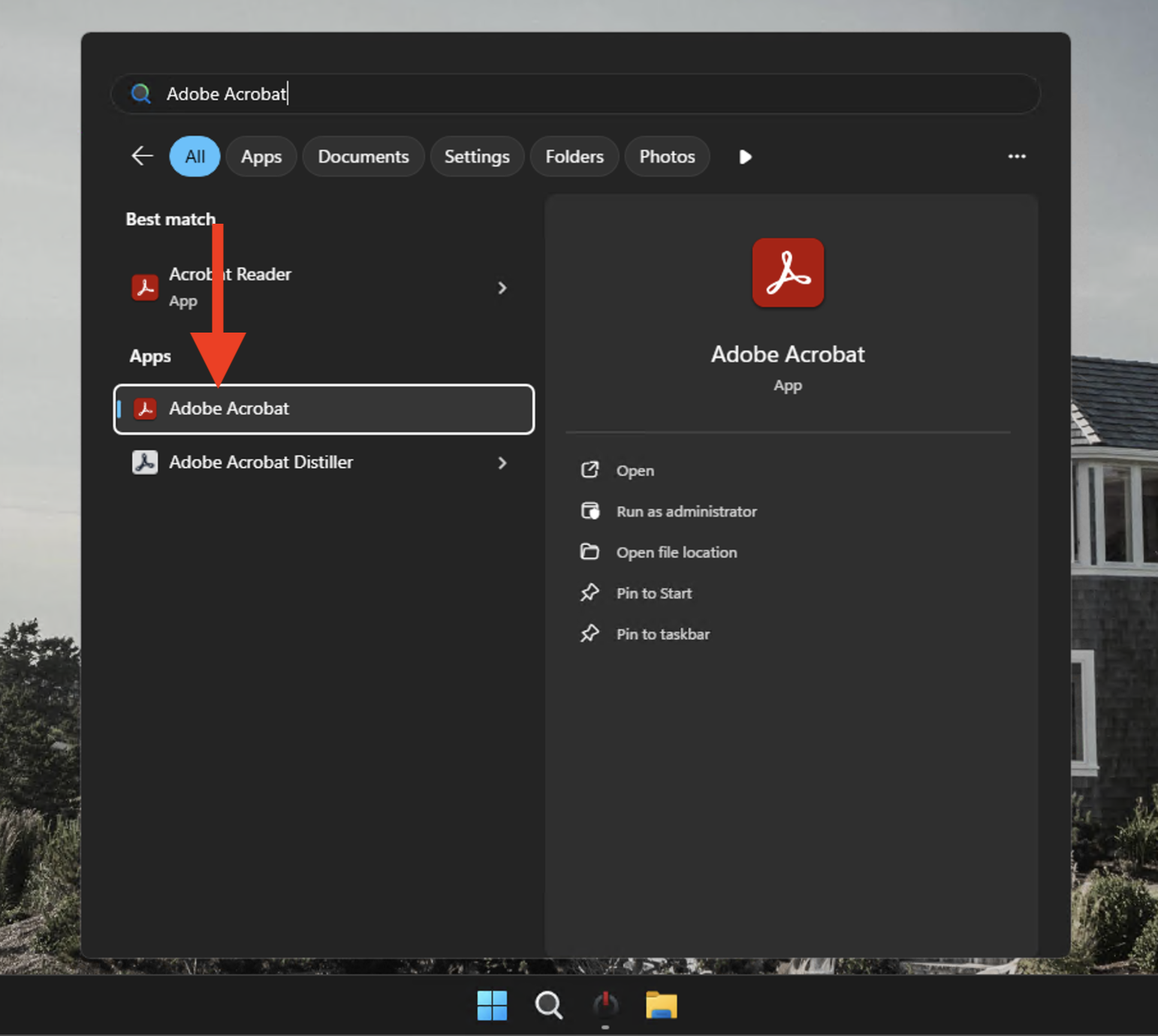
Search for "Adobe Acrobat" in the Windows Search or by opening any .pdf document you may have already saved.
Step 2: Select More Sign-In Options
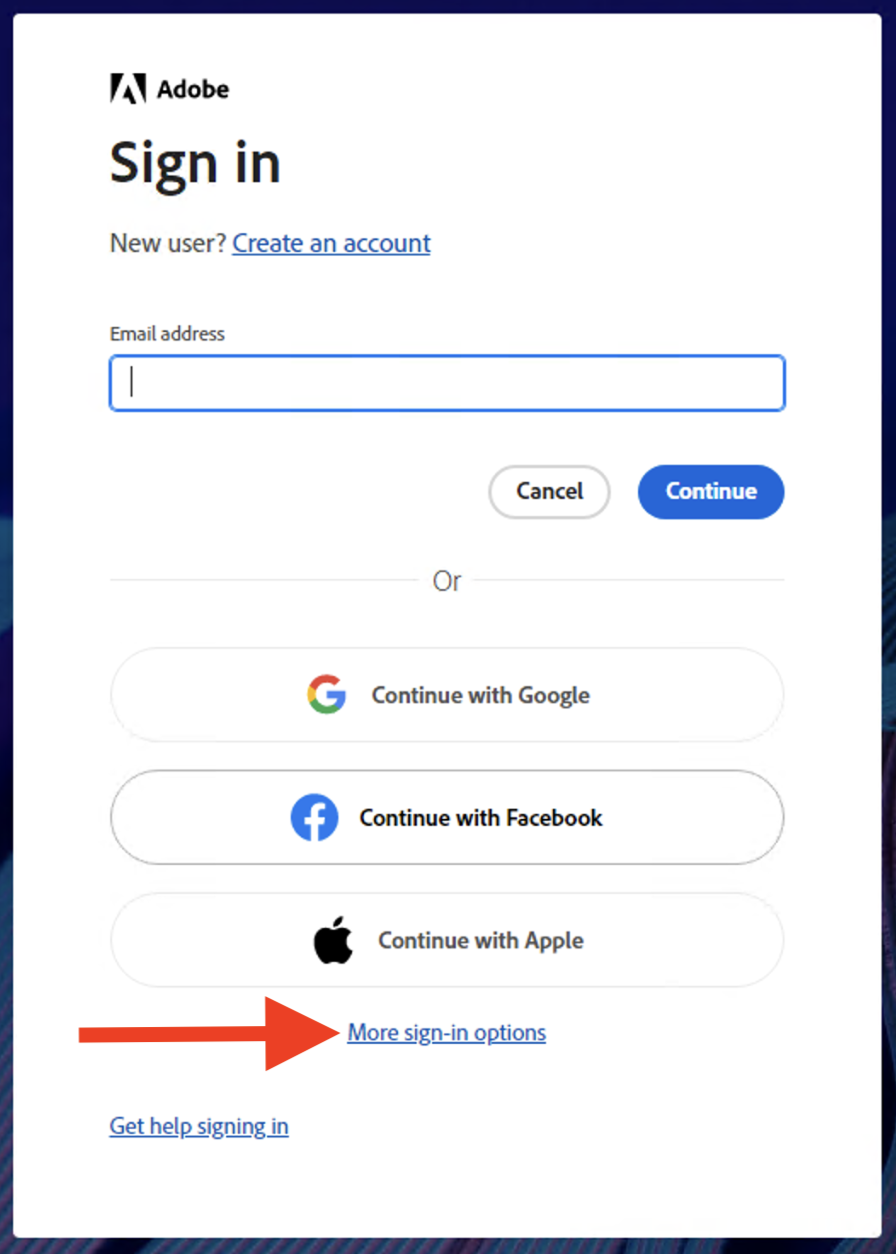
Click on More sign-in options to view additional authentication methods.
Step 3: Select Microsoft
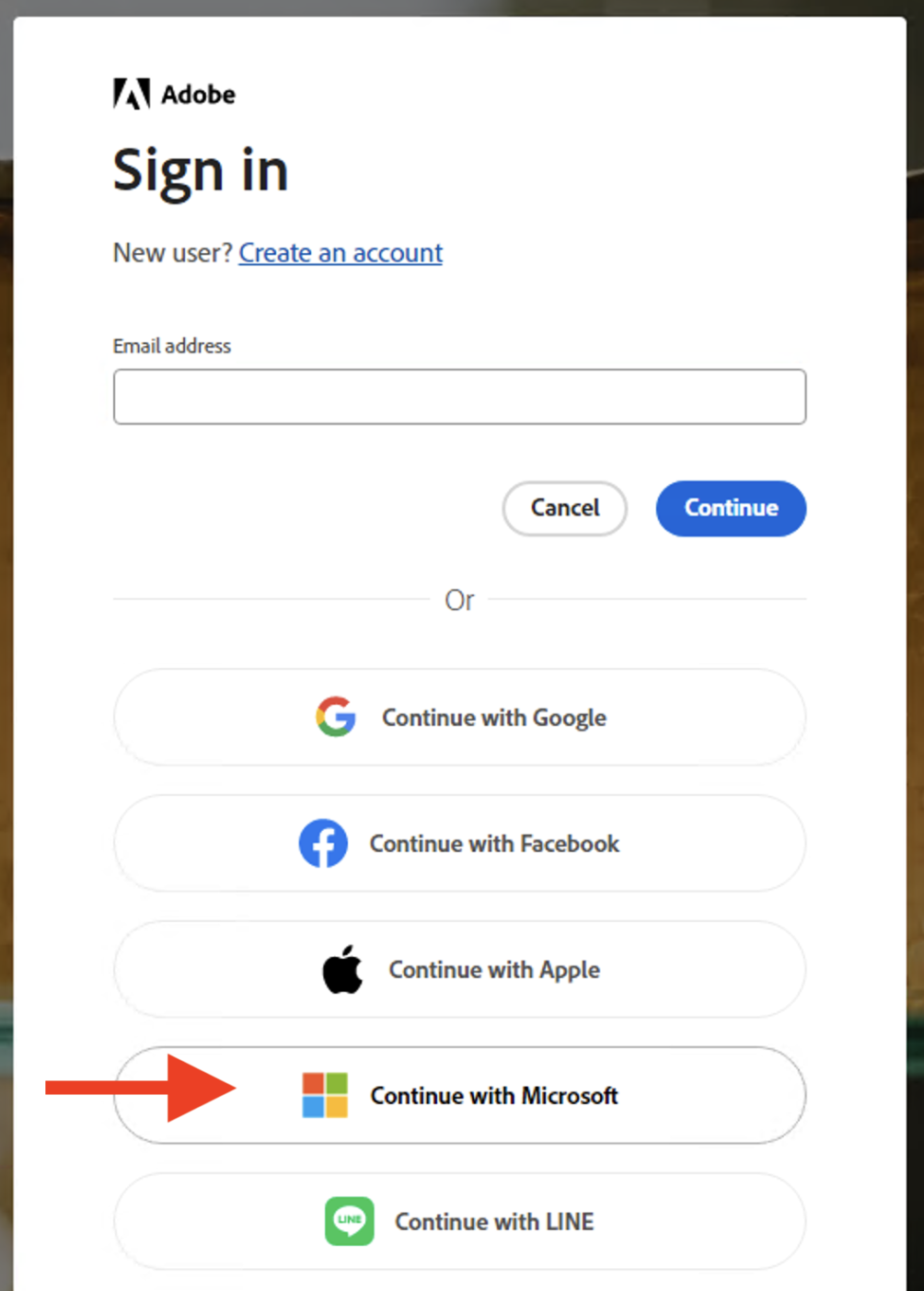
Select Continue with Microsoft as your sign-in method to use your organization's Microsoft account credentials.
After selecting Continue with Microsoft a browser window will pop up, you'll be prompted to enter your Microsoft credentials (e.g., username@gfs.loans) and complete any additional authentication steps if required (such as Microsoft Authenticator).
Step 4: Join Team
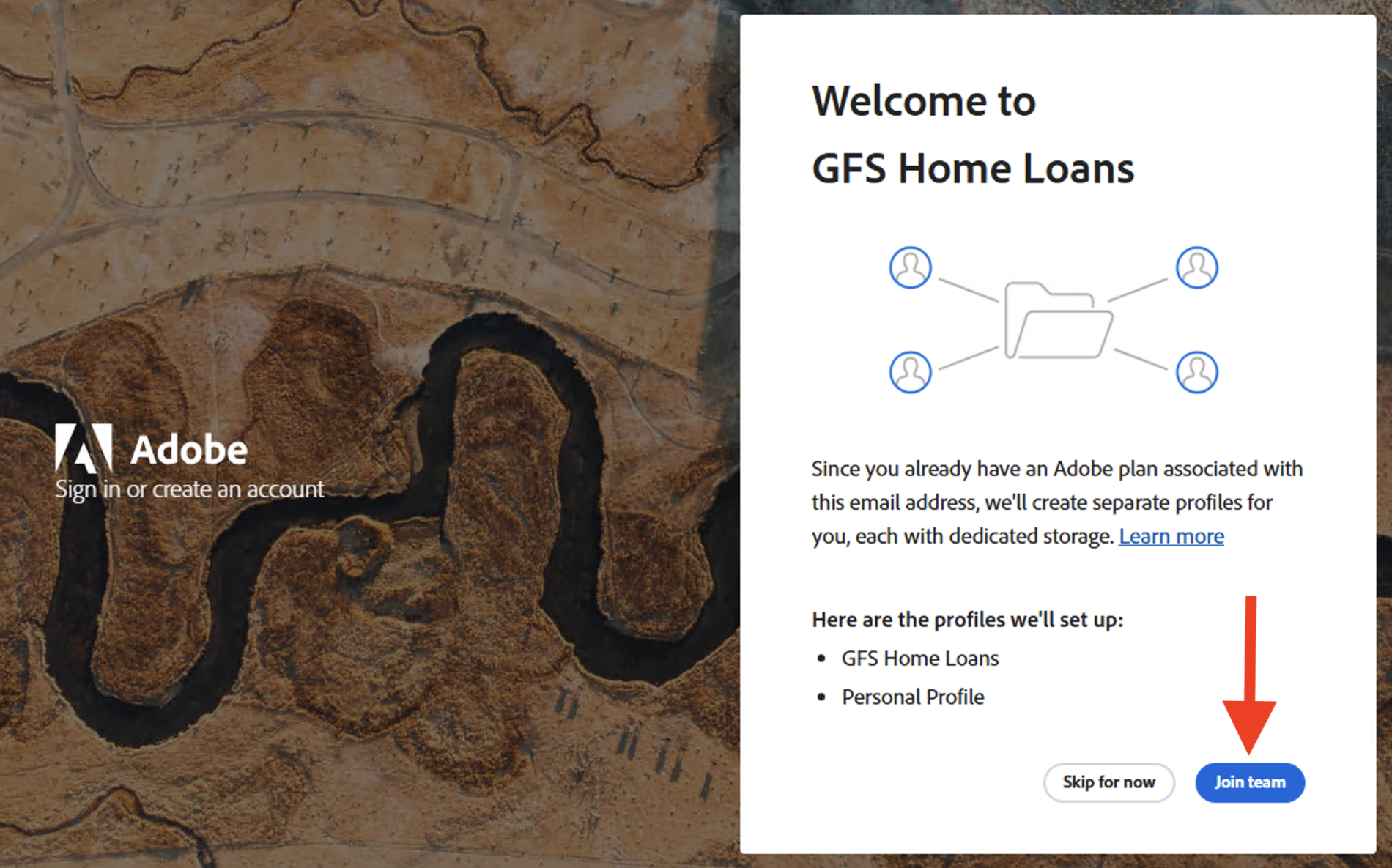
Click Join team to connect your Adobe Acrobat account with your organization's Microsoft account.
Step 5: Select GFS Home Loans
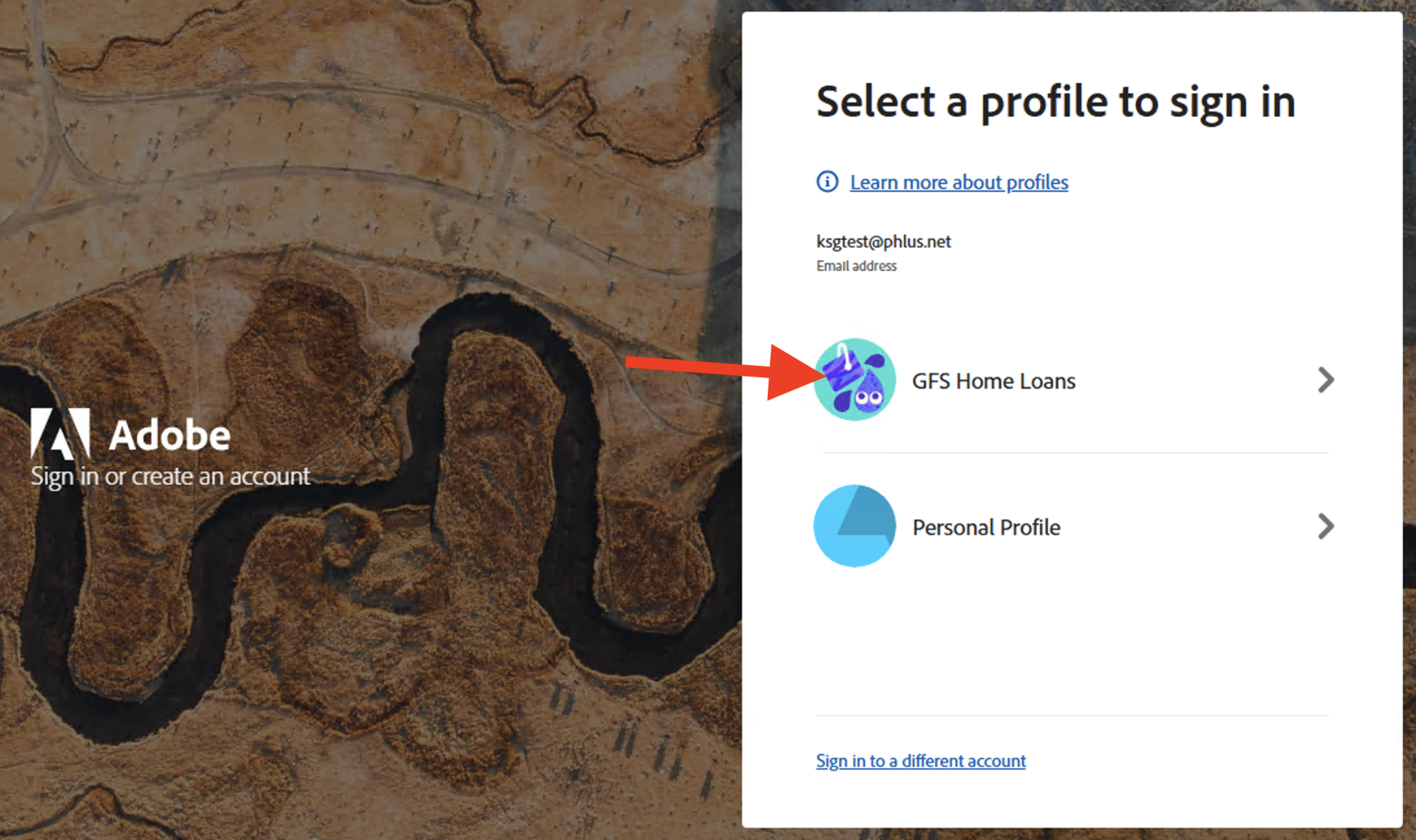
Select GFS Home Loans from the list of available organizations to complete the authentication process.
Need Help?
If you continue to experience issues with Adobe Acrobat activation or login, please contact IT support for assistance.