New User Login Guide
This guide will walk you through downloading Microsoft Authenticator and setting up your Microsoft account login for the first time.
Downloading Microsoft Authenticator
Android Devices (e.g., Galaxy, Pixel, OnePlus, Motorola)
- Access Google Play Store on your Android device
- Download Microsoft Authenticator
- Proceed to Logging Into Microsoft Account via Web
Apple Devices (iPhone, iPad)
- Access App Store on your Apple device
- Download Microsoft Authenticator
- Proceed to Logging Into Microsoft Account via Web
The correct Microsoft Authenticator app logo is shown here. Make sure you download the official Microsoft Authenticator app.
Opening Microsoft Authenticator App
Important: Do not continue with the application setup yet. Continue to the next section: Logging Into Microsoft Account via Web Browser.
Logging Into Microsoft Account via Web Browser
Initial Login Steps
-
Access Web Browser (e.g., Chrome, Edge, Firefox)
-
Access Microsoft Account at aka.ms/myaccount
-
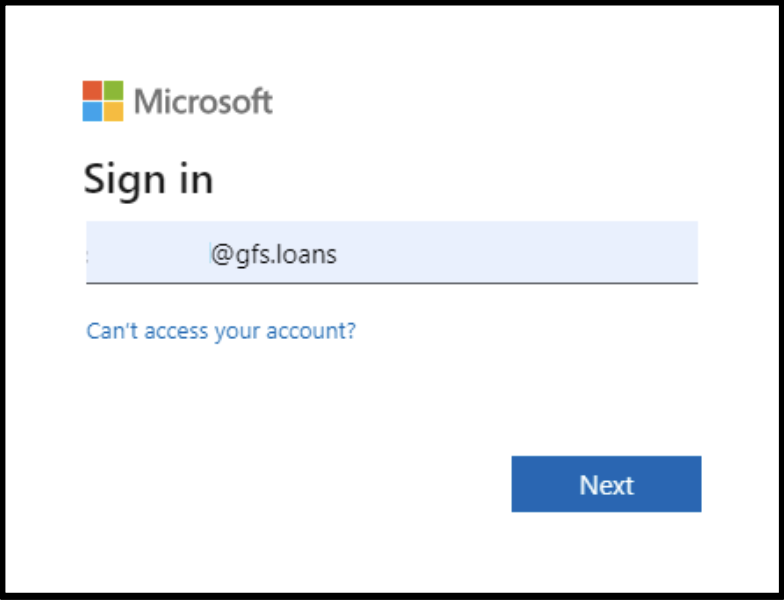
Enter Account Login
- From the Microsoft login screen, enter your account login (e.g.,
username@gfs.loans) - Result: Enter Password screen request appears
- From the Microsoft login screen, enter your account login (e.g.,
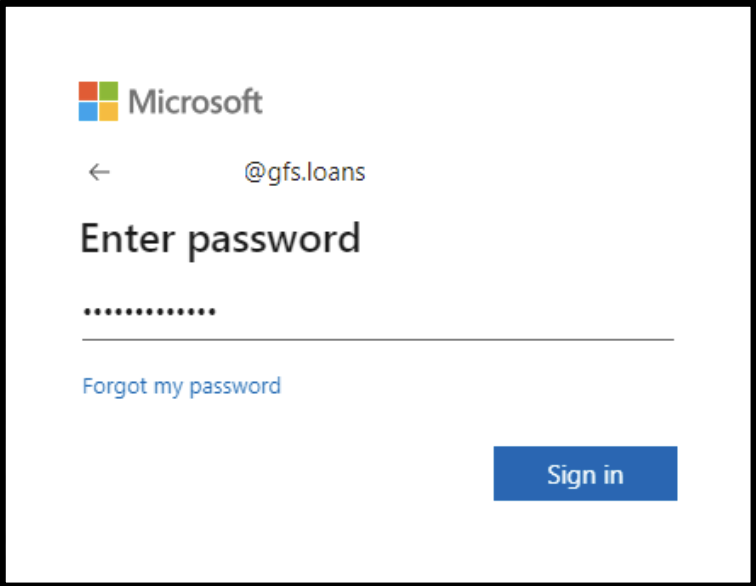
- Enter Temporary Password
- From the Enter Password screen, enter your user temporary password
-
Select Sign In
- Result: Action Required screen request appears requesting further information
-
Select Next
Setting Up Microsoft Authenticator
-
Review and Complete the Following Steps:
Step 1: Verify Microsoft Authenticator app is installed
- Select Next
Step 2: Read Instructions for Microsoft Authenticator app on screen
- Select Next
- Note: QR Code appears for Microsoft Authenticator app to scan
Step 3: Set Up Microsoft Authenticator on Phone
- Access Microsoft Authenticator app on your phone
- Follow settings prompts regarding data
- Select School or Work Account
- Select Scan QR Code
- Result: Notification Prompt appears
Step 4: Complete Authentication
- From the Notification Prompt, enter the number given into Microsoft Authenticator app notification on your phone
- Note: Your phone will show a prompt from Microsoft Authenticator app with a Time Sensitive Request asking "Are you trying to sign in?"
-
Select Next
noteMicrosoft will send an email to your personal email address with a six-digit verification code.
Email Verification
-
Complete Email Verification:
noteThis should be your personal email and not your company email address.
-
Enter Temporary Password
- Enter Temporary Password
- Enter New Password
- Select Next
Next Steps
- Continue to downloading the Windows App to access Mortgage Workspace
- Access Mortgage Workspace from Your Web Browser
Once you have completed the login process, you should have access to your Company Microsoft Account. If you encounter any issues during this process, please contact IT support for assistance.