Quarantined Emails
When Microsoft 365 detects potentially harmful or suspicious emails, they are automatically placed in quarantine to protect you and the organization. This includes spam, phishing attempts, malware, and emails that violate security policies.
Don't worry - Receiving quarantined email notifications is normal. Microsoft's security systems are working to protect you from potentially dangerous messages.
Understanding Quarantine Notifications
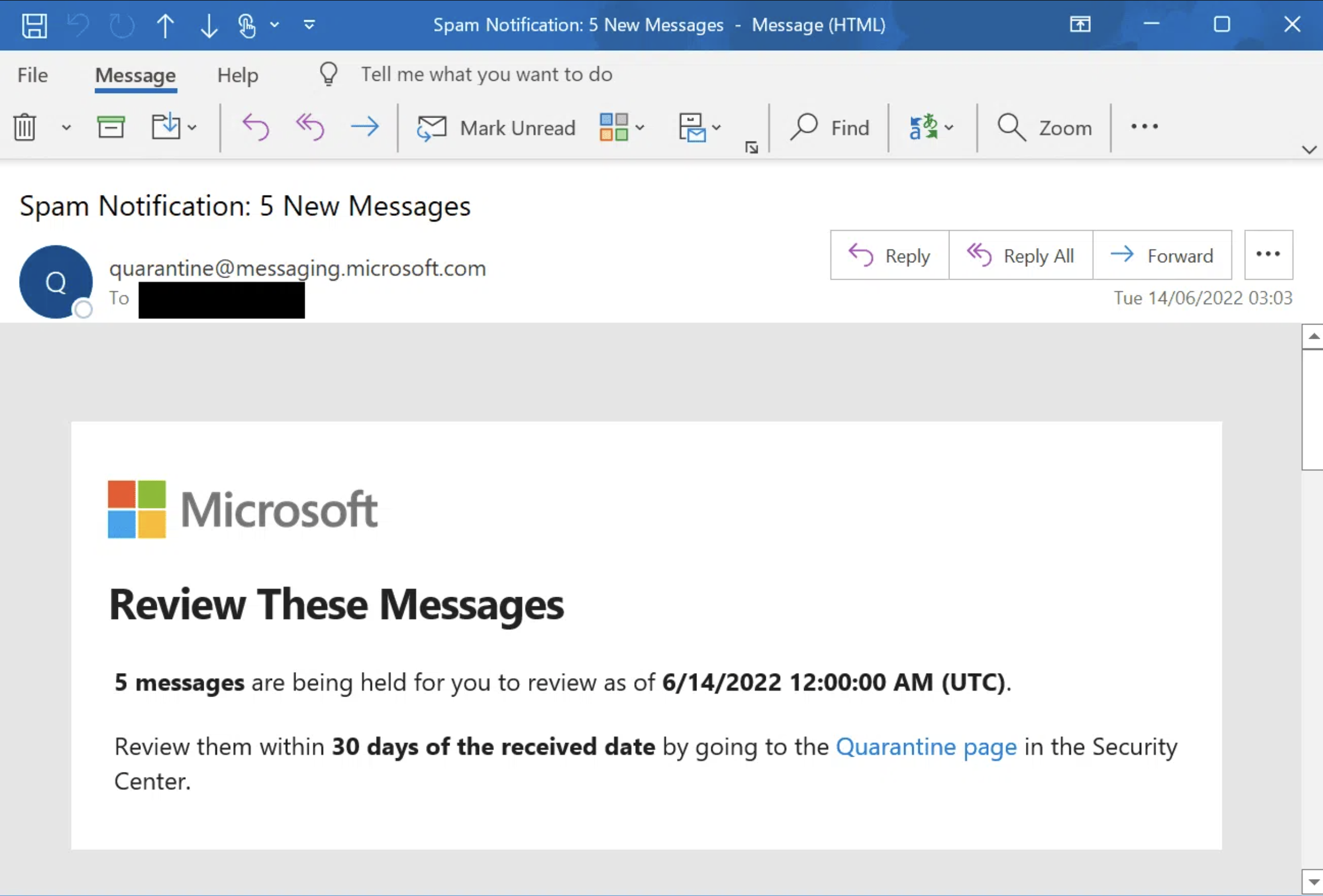
When emails are quarantined, you'll receive a notification message in your inbox that looks similar to the example below. This notification will:
- List the quarantined messages
- Provide options to review, release, or block senders
- Include a link to access the full Quarantine page
The notification email does not include the specific reason why each message was quarantined. For detailed information, you'll need to review messages on the Quarantine page.
Accessing the Quarantine Page
To view and manage all your quarantined messages:
- Open your web browser
- Navigate to the Microsoft 365 Defender Quarantine page
- Sign in with your Microsoft 365 credentials if prompted
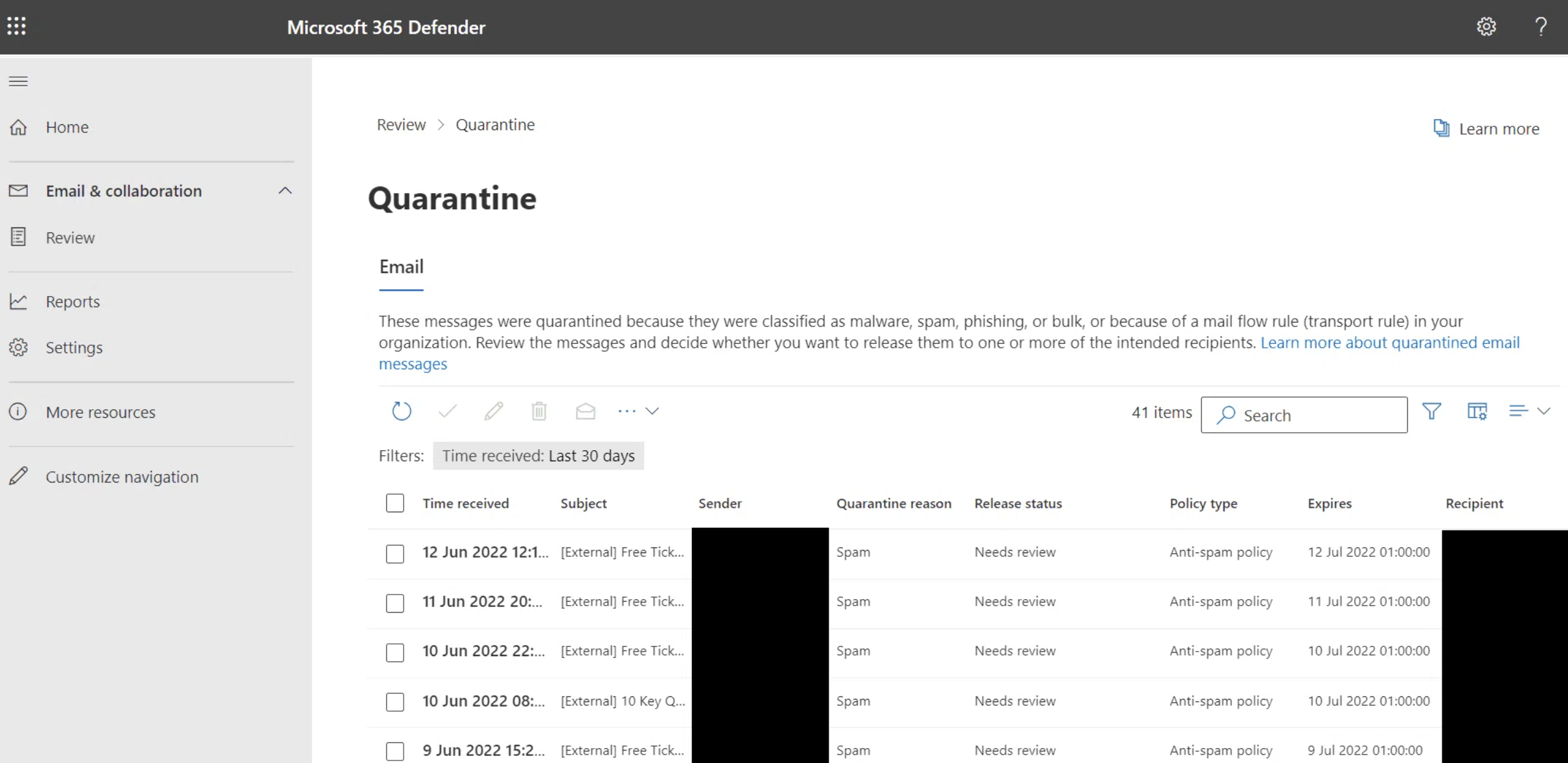
- After a few moments, your quarantined messages will appear
Filtering Quarantined Messages
The Quarantine page provides several filtering options to help you find specific messages:
- Message ID - Search by the unique message identifier
- Sender address - Filter by who sent the email
- Recipient address - Filter by who received the email
- Time received - Filter by when the message was received
- Expiration date - See when quarantined messages will be automatically deleted
- Quarantine status - View active, expired, or released messages
- Release status - Check if messages have been released
- Policy type - See which security policy triggered the quarantine
Taking Action on Quarantined Messages
When reviewing quarantined messages, you have several options:
Release a Message
If you determine a message is safe and legitimate:
- Select the message from the quarantine list
- Click Release message or Release
- Choose whether to report it as a false positive
- The message will be delivered to your inbox
Before releasing: Carefully review the sender, subject line, and any preview content. If you're unsure, it's safer to leave it quarantined or contact IT support.
Block a Sender
If you want to prevent future emails from a specific sender:
- Select the quarantined message
- Click Block sender or use the action menu
- Confirm the action
- Future emails from this sender will be automatically blocked
Delete a Message
To permanently remove a quarantined message:
- Select the message
- Click Delete or use the action menu
- Confirm the deletion
- The message will be permanently removed and cannot be recovered
Review Message Details
To see more information about why a message was quarantined:
- Select the message
- Click View message or Preview
- Review the message content, headers, and quarantine reason
- This helps you make an informed decision about releasing or deleting
Best Practices
Regular Review: Check your quarantine regularly (weekly or bi-weekly) to ensure legitimate emails aren't being held unnecessarily.
Be Cautious: If you're unsure about a message, don't release it. Contact IT support for assistance rather than risking exposure to phishing or malware.
- Review before releasing - Always examine sender details and message content before releasing
- Report false positives - If legitimate emails are frequently quarantined, report them to help improve filtering
- Don't ignore notifications - Regular review helps ensure important messages aren't missed
- Understand expiration - Quarantined messages are automatically deleted after a set period (typically 30 days)
Common Quarantine Reasons
Messages may be quarantined for various reasons:
- Spam - Unsolicited bulk email
- Phishing - Attempts to steal credentials or personal information
- Malware - Messages containing malicious attachments or links
- Policy violations - Emails that violate organizational security policies
- Suspicious content - Messages with characteristics that match known threats
- Bulk email - Mass marketing emails that may be unwanted
Need Help?
If you're experiencing issues with quarantined emails or need assistance:
- Contact IT support for help reviewing or releasing messages
- Report persistent false positives that may need policy adjustments
- Request training on identifying and handling suspicious emails