Reporting Phishing or Spam
Reporting suspicious emails is an important part of keeping your inbox and the organization secure. When you report phishing attempts or spam emails, Microsoft 365's security systems learn from these reports and can better protect everyone in the organization.
Why Report? Reporting suspicious emails helps Microsoft's security systems improve their detection capabilities and protects your colleagues from similar threats.
What to Report
You should report emails that are:
- Phishing attempts - Emails trying to trick you into revealing passwords, personal information, or clicking malicious links
- Spam - Unsolicited bulk emails, advertisements, or promotional messages
- Suspicious content - Emails that seem suspicious but you're not certain about
- Malware - Messages with suspicious attachments or links that could harm your computer
If you've already clicked a suspicious link or opened an attachment, immediately contact IT support for assistance.
Reporting in Classic Outlook
To report a phishing or spam email in the desktop version of Outlook:
- Select the message you want to report from your inbox
- Look for the Report Message button in the top right area of the ribbon
- Click Report Message and choose one of the following options:
- Phishing - For emails attempting to steal information or credentials
- Junk - For spam or unwanted promotional emails
- Not Junk - If a legitimate email was incorrectly marked as junk
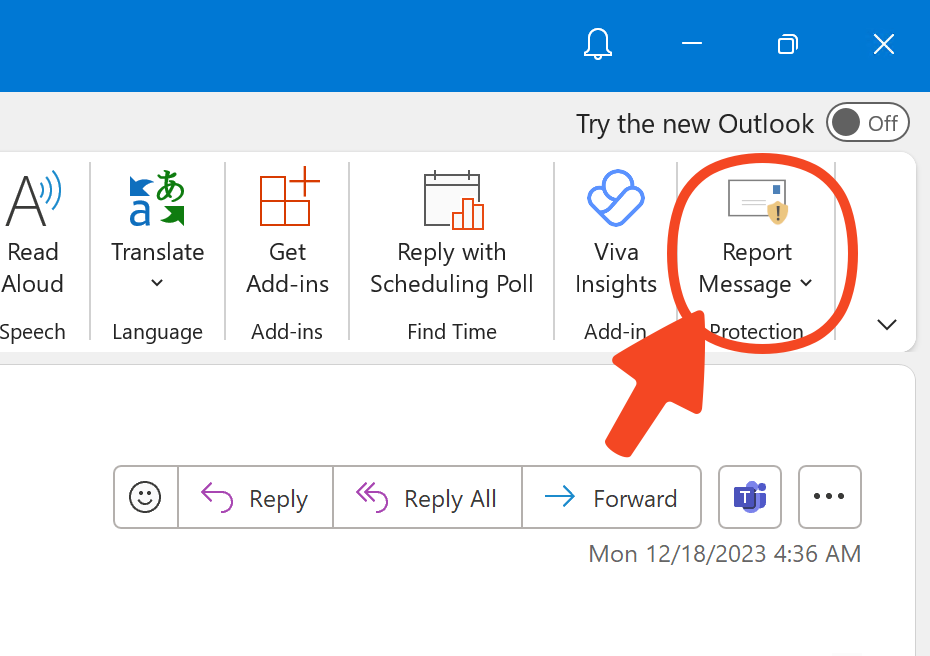
The Report Message button may appear in different locations depending on your Outlook version. If you don't see it, check the Home tab or look for a Report option in the message menu.
Reporting in Outlook Web Access (OWA)
To report emails when using Outlook in your web browser:
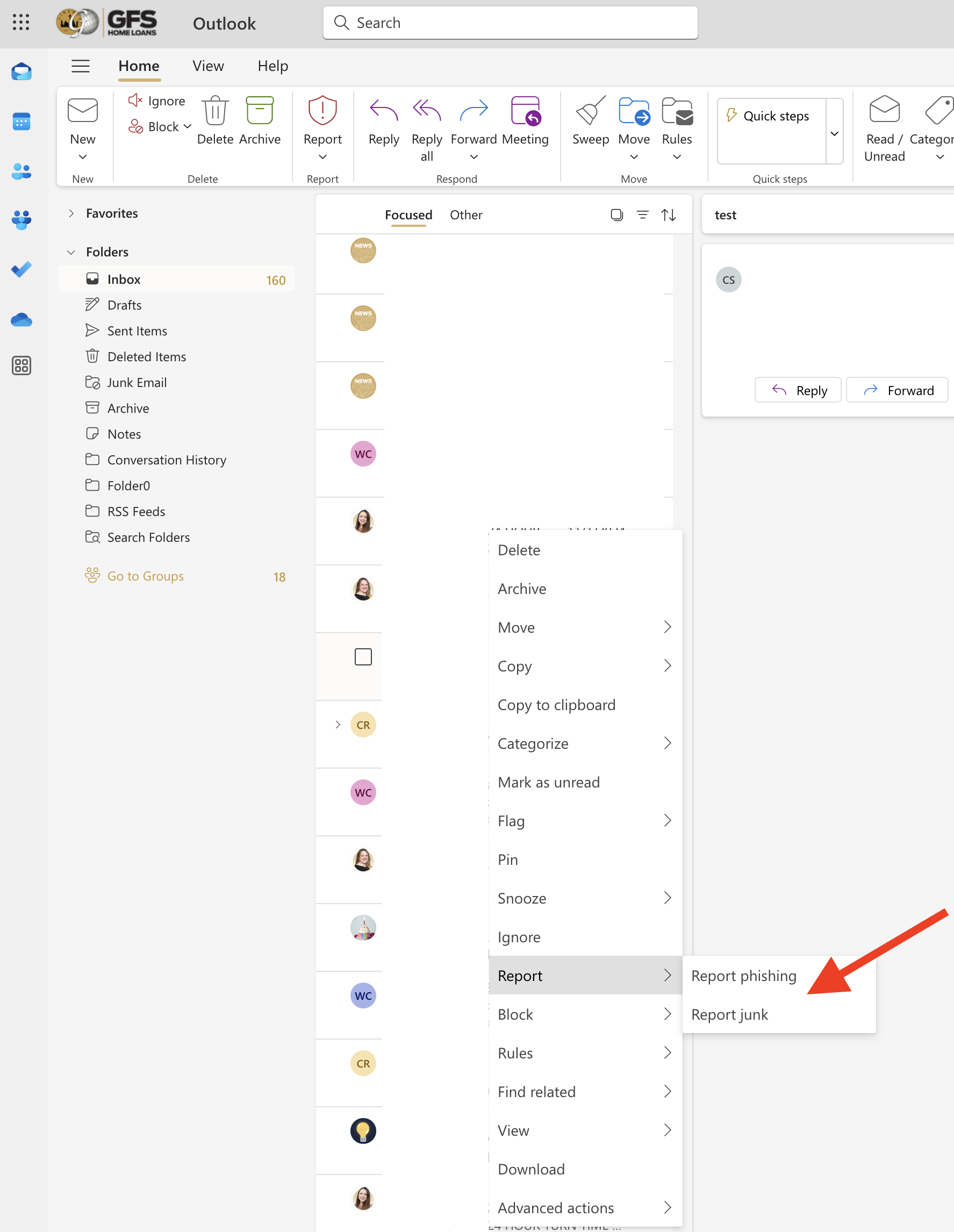
- Right-click on the message you want to report in your inbox
- From the context menu, select Report
- Choose the appropriate option:
- Report phishing - For suspected phishing attempts
- Report junk - For spam or unwanted emails
- Not junk - If a legitimate email was incorrectly filtered
Alternative Method in OWA
You can also report messages using the message actions:
- Select the message by clicking the checkbox next to it
- Look for the Report option in the toolbar at the top
- Choose Report phishing or Report junk from the dropdown menu
What Happens When You Report
When you report an email:
- Immediate action - The message is moved to your Junk Email folder (if reported as junk)
- Security analysis - Microsoft analyzes the message to identify threats
- Learning - The security system learns from your report to better detect similar threats
- Protection - Similar messages may be automatically blocked for you and others in the organization
- Feedback - In some cases, you may receive confirmation that your report was processed
False Positives: If you accidentally report a legitimate email, you can usually undo the action by marking it as "Not Junk" or moving it back to your inbox.
Best Practices
Report Early: Report suspicious emails as soon as you identify them to help protect others from the same threat.
- Don't engage - Don't reply to, forward, or click links in suspicious emails before reporting them
- Report before deleting - Reporting helps the security system learn, even if you plan to delete the message
- Be specific - Use "Report phishing" for actual phishing attempts and "Report junk" for spam
- Review regularly - Check your Junk Email folder periodically to ensure legitimate emails weren't incorrectly filtered
- Trust your instincts - If something seems suspicious, it's better to report it
Identifying Phishing Emails
Common signs of phishing emails include:
- Urgent language - Messages creating a sense of urgency or panic
- Suspicious sender - Email addresses that look similar to legitimate ones but have slight differences
- Generic greetings - "Dear Customer" instead of your name
- Requests for credentials - Asking you to "verify" or "update" your password
- Suspicious links - Hover over links to see if the URL matches what you expect
- Poor grammar or spelling - Many phishing emails contain errors
- Unexpected attachments - Be cautious of attachments from unknown senders
- Too good to be true - Offers that seem unrealistic or suspicious
Reporting Multiple Messages
If you receive multiple suspicious emails from the same sender:
- Report each message individually for better security analysis
- Consider blocking the sender after reporting (see Blocked Senders in Outlook)
- Contact IT support if you're receiving a high volume of suspicious emails
Need Help?
If you're unsure whether an email is suspicious or need assistance:
- Contact IT support for guidance
- When in doubt, report it - it's better to be cautious
- Don't hesitate to ask for help identifying phishing attempts
Related Topics
- Quarantined Emails - Learn how to manage emails that have been automatically quarantined
- Blocked Senders in Outlook - Instructions for managing blocked senders