Foxit PDF Editor
Foxit PDF Editor is a professional PDF editing tool available for your use. This guide will help you activate and log into the application using your Microsoft account credentials.
Table of Contents
Logging into Foxit PDF Editor
Follow these steps to activate and sign in to Foxit PDF Editor using Single Sign-On (SSO) with your Microsoft account.
Step 1: Activate Foxit
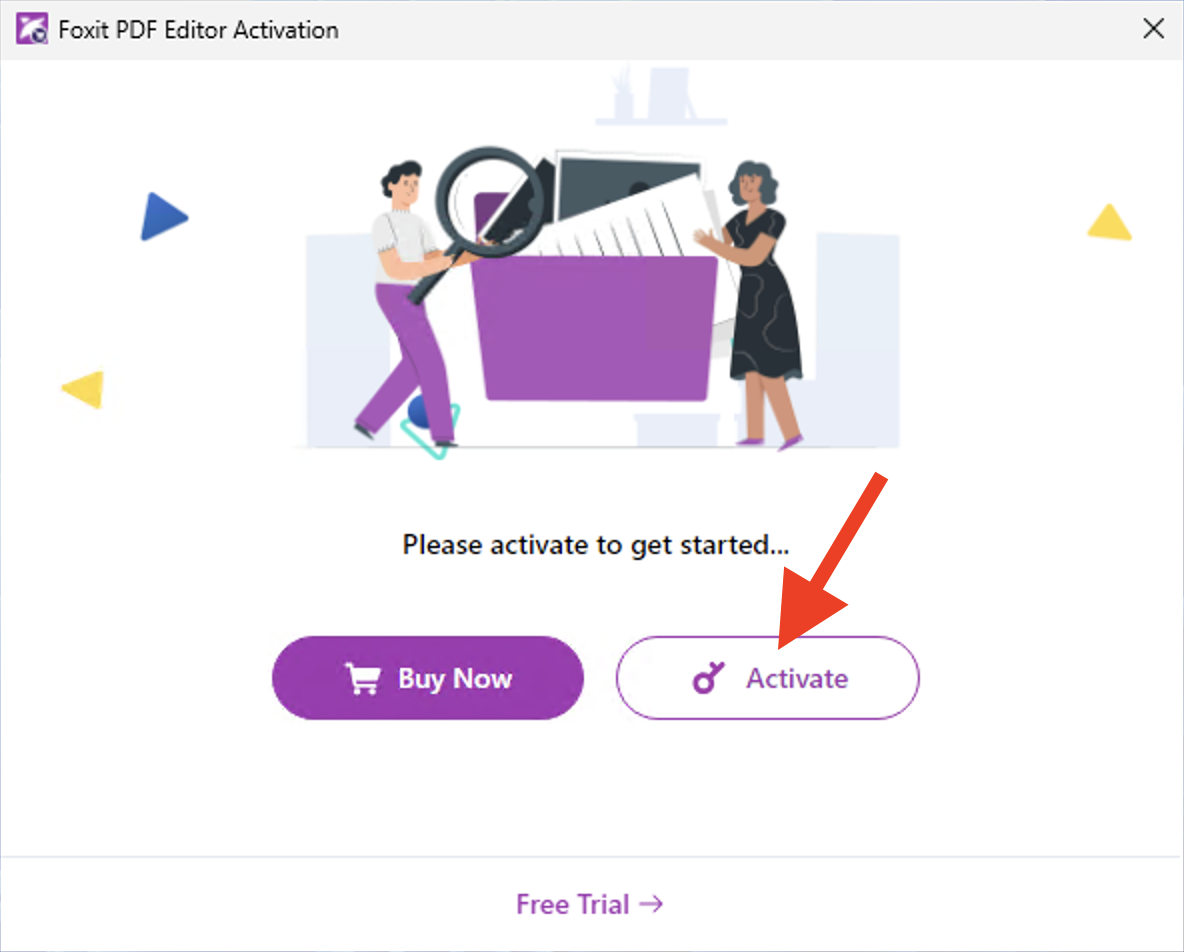
Click the Activate button to begin the login process.
Step 2: Sign In

Select Sign In from the activation menu.
Step 3: Enter Email and Authenticate
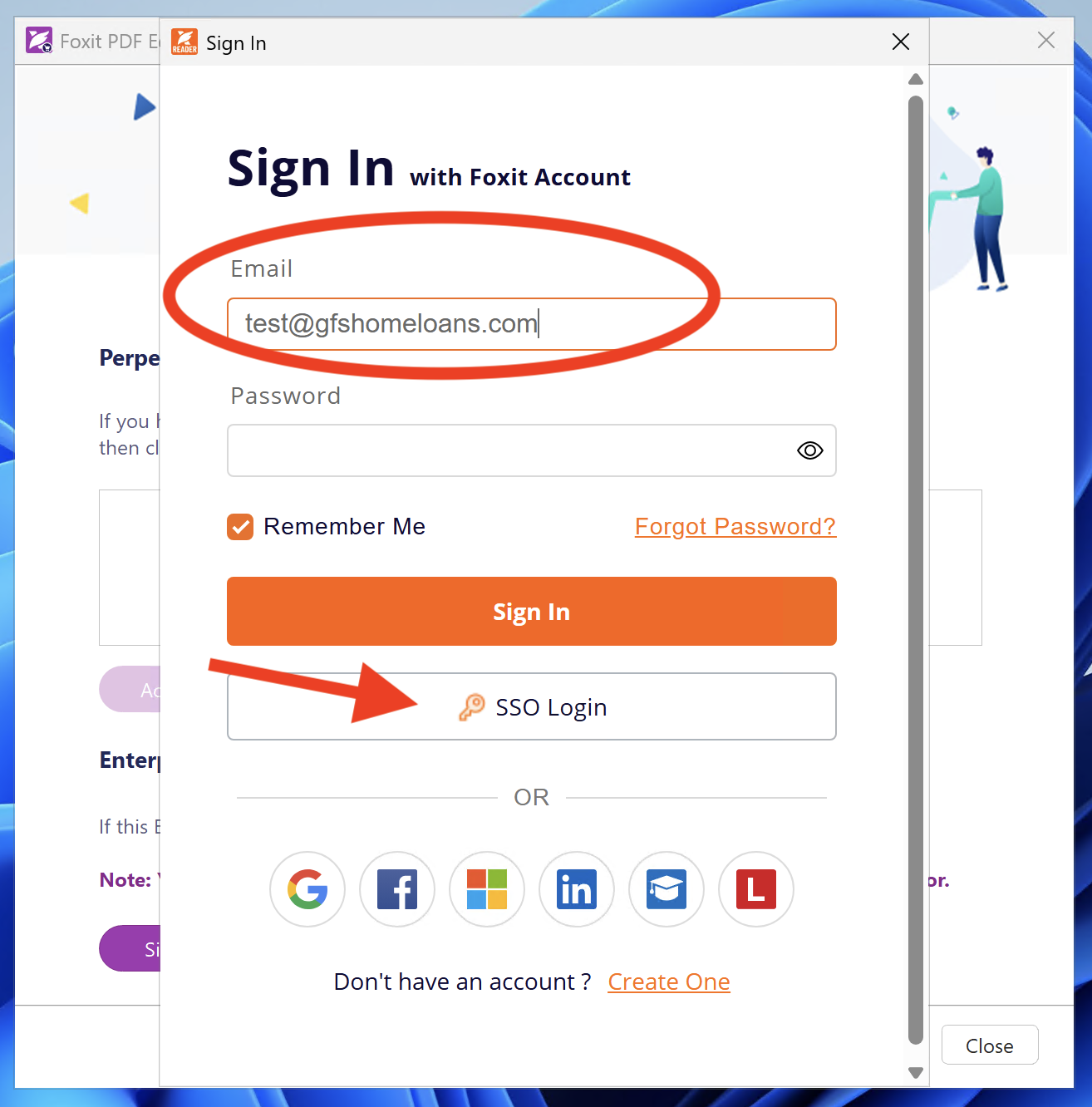
Enter your primary email address, then click SSO Login to authenticate using your organization's credentials.
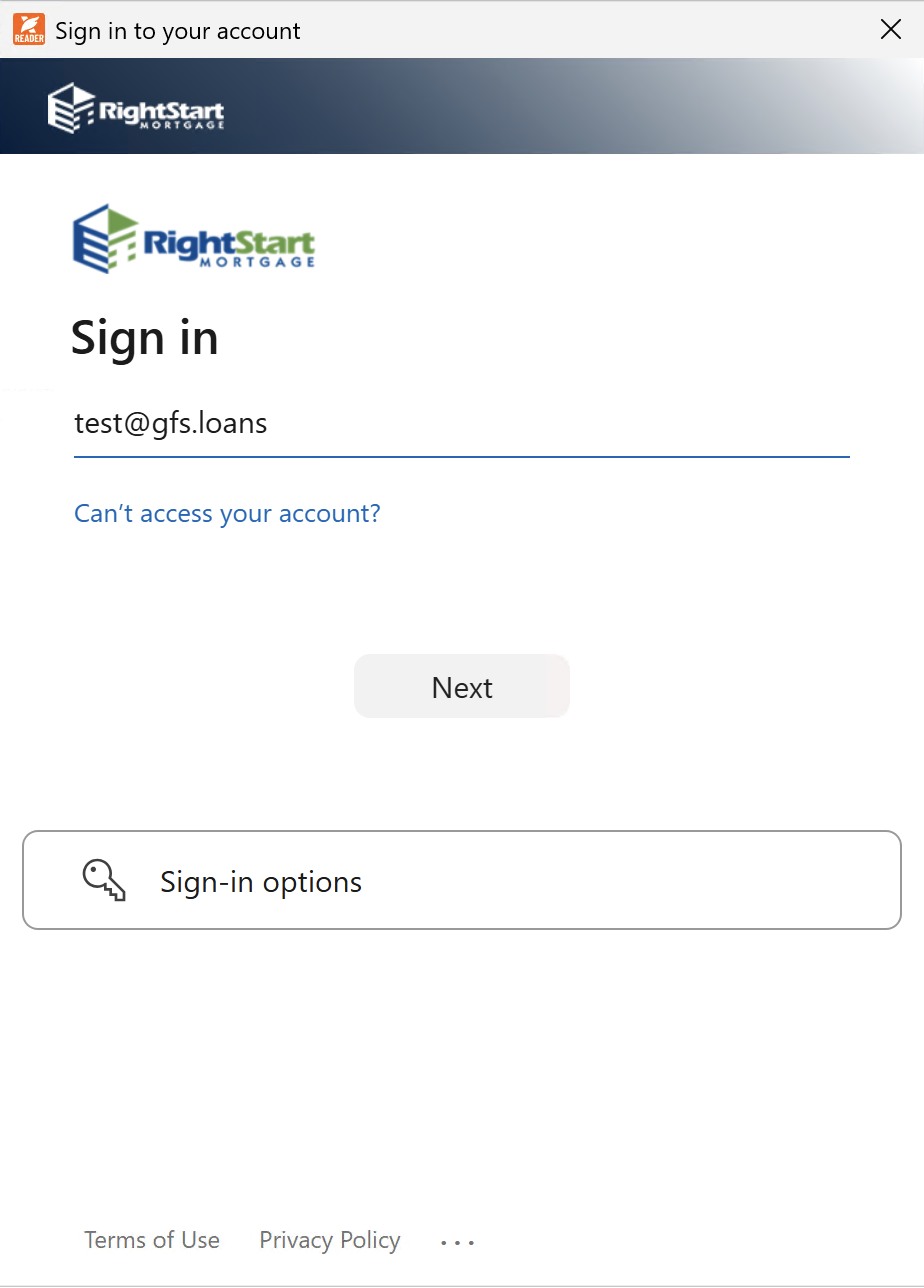
Enter your Microsoft username in the format username@gfs.loans, then click Next to continue.
Step 4: Complete Activation
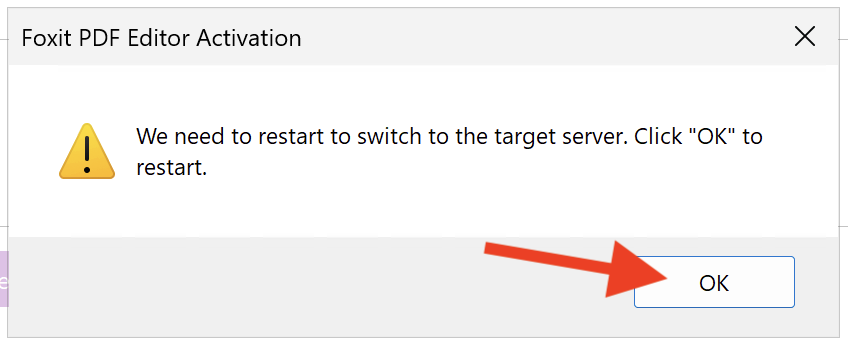
After successful authentication, click OK. The Foxit application will automatically restart to complete the activation process.
Step 5: Verify Your Login
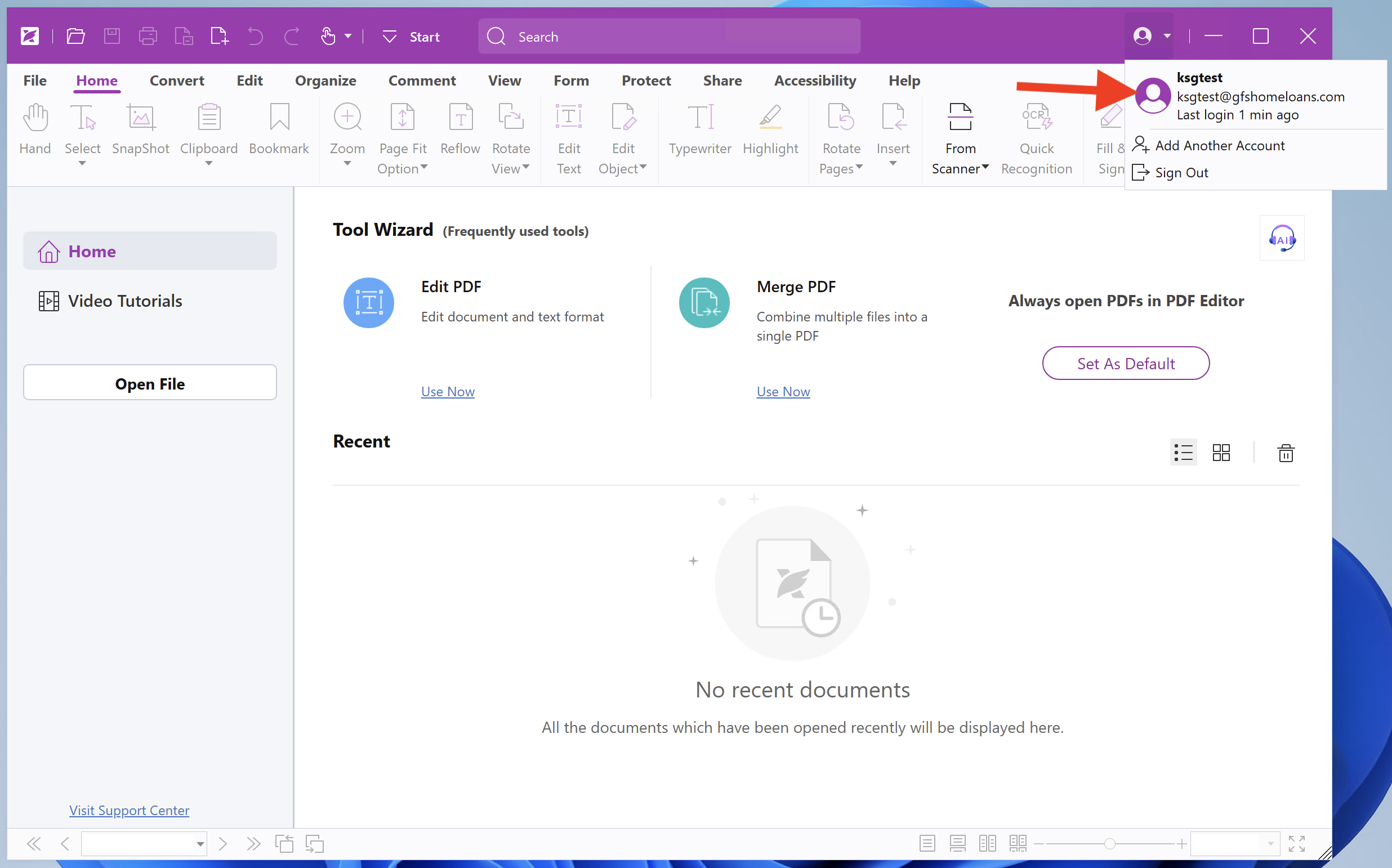
To verify you're logged in correctly, click the down arrow icon next to the user icon in the top-right corner. Your name and email address should be displayed, confirming your account is active.
Troubleshooting: Activation Error
If you encounter an activation error when logging into Foxit PDF Editor, this usually means you've reached the maximum number of authorized devices. Follow these steps to resolve it:
Step 1: Acknowledge the Error
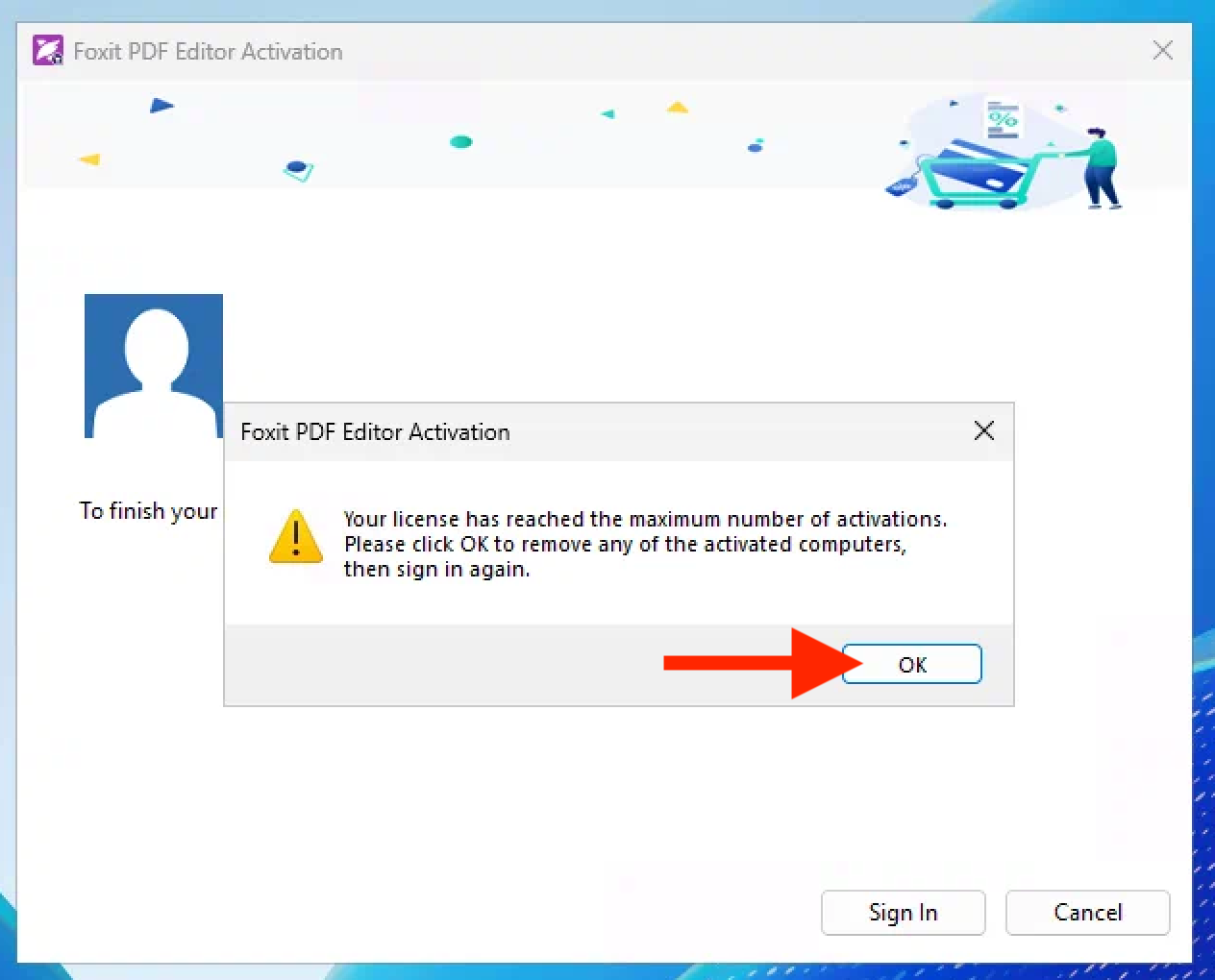
Click OK to dismiss the error message.
Step 2: Remove Device Authorization
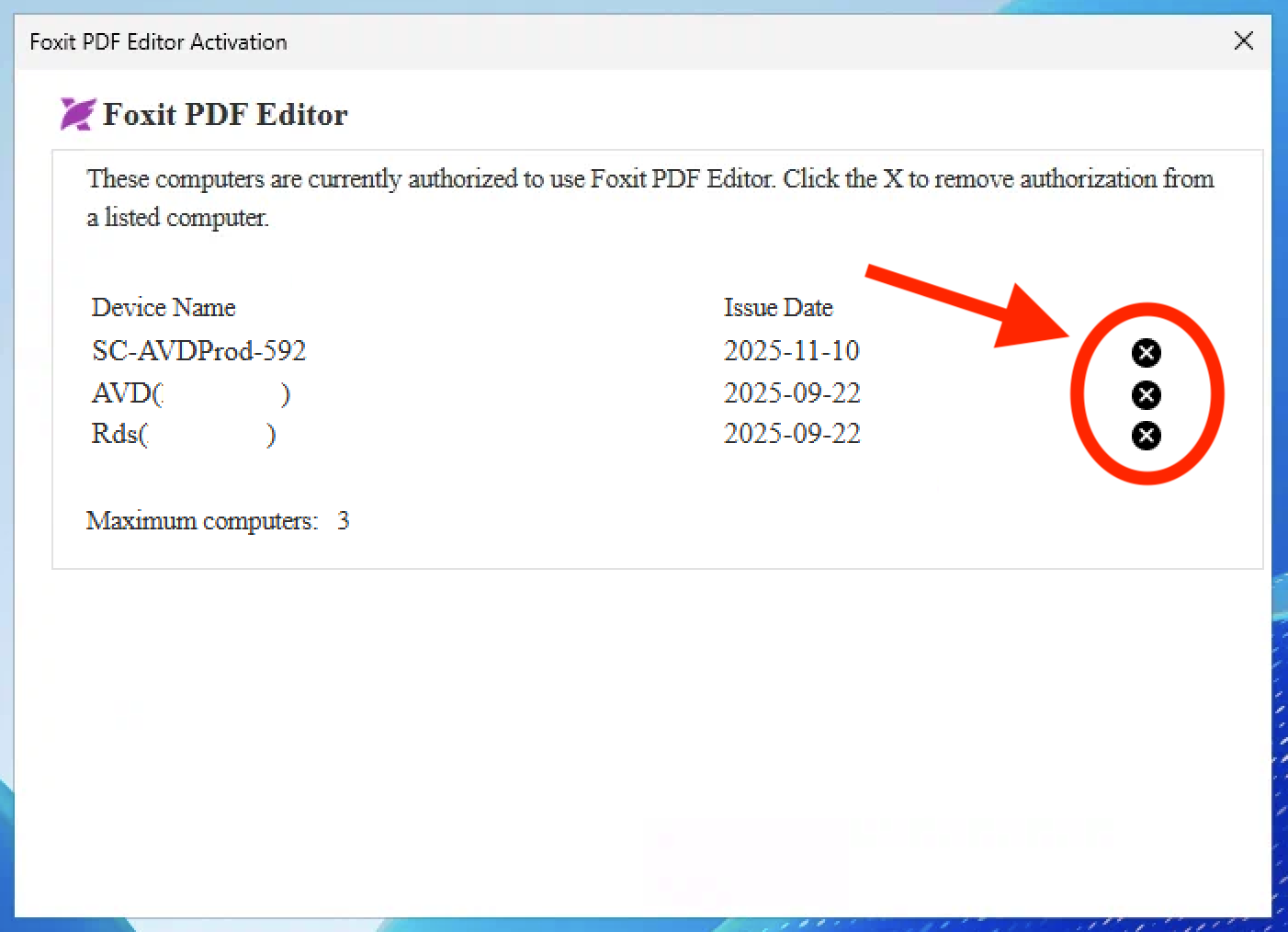
- Click the X next to all listed computers to remove its authorization
- Close the window by clicking the X in the top-right corner
- Select Sign In again to complete the login process
Need Help?
If you continue to experience issues with Foxit PDF Editor activation or login, please contact IT support for assistance.